Showing posts with label technology. Show all posts

Tuesday, July 26, 2011

Teachers, Technology, Skillz, and Bieberfever: Reflections from #edchat

After participating in #edchat tonight I felt I needed to get a few things out. The topic for tonight's episode was "What amount of tech should be a requirement for every teacher to know? Are there any specific core applications for teachers?".

My first concern stems from the topic itself; its wording tacitly implies that technology is necessary to be a good teacher and therefore teachers that do not use technology cannot be good teachers. It also implies as a corollary that we must be utilizing technology in teaching. I don't think I have ever heard a solid argument as to why that must be the case. The most common arguments I hear are that "Students use technology so we must use it as well", "It makes education relevant to the student", and "It is required for a 21st century education".
Justin Bieber, technology, and pointing: it doesn't get any more relevant than that
The first argument is fallacious and is known as the argument from popularity (Argumentum ad populum). The basic idea is that many students use technology therefore technology should be used in education. It is a false premise because mere belief in something does not indicate it is true. Many students like listening to Justin Bieber*, it does not mean his music is worth listening to.

The second argument is also fallacious as it assumes that the combination of technology and education will maintain the relevancy that the technology provides alone:

A. Technology is relevant to students.
B. Students like things that are relevant.
C. Therefore teachers should use technology so students like education.

By accepting this argument you tacitly accept that anything that is relevant to students should improve education. Many students find Justin Bieber relevant, but it doesn't mean I am going to get Bieberfever in my science classroom*. Many students find exploring the outdoors and nature to be relevant until you require they learn about it in class. Obviously the way the lesson is taught has a great bearing on how the students will react, but that is an issue of pedagogy not technology.

The final argument implies that in the 21st century we use technology so therefore to exist in the 21st century you must know how to use technology. Once again it implies a causal relationship where there may not actually be one (and employs the logically fallacy known as affirming the consequent). The additional aspect to this argument I hear is that we must prepare students for jobs in the 21st century; jobs that do not exist yet that arise from problems we haven't stated yet. They then argue that teaching knowledge is ineffective because it will have changed by the time the students obtain these future jobs. However, the same can be said regarding the technology: it will be entirely different when the student leaves school and begins working/seeks higher education. The argument can be made that learning how to use today's technology provides a base for learning tomorrows; which I would agree with. However, that implies that learning today's knowledge provides a base for learning tomorrow's knowledge as well, which puts us back at square one. The argument also implies a teaching of technology for the sake of technology which leads me into my next concern: the lack of a clearly stated goal for teaching with technology.

It appears to me that we are integrating technology because it is there. Many mention the importance of ensuring the technology is used in accordance with proper pedagogy, a statement I couldn't agree more with. But there is so much more talk regarding how to use tech and very little regarding pedagogy that I worry that last statement is lip service to a degree. So to rectify this I will attempt to take the arguments I have listed and synthesize a goal for the integration of technology.

The main argument is preparing students for the future, so we will start there. The question that must be answered is what will the future look like. The only assumption I can start with, is that there will be people (because if there are no people, this argument is moot). So, what can we deduce if we assume that there will be people (in brackets I list the skills I believe are needed to accomplish the task/goal):
  1. People will wish to communicate with each other (communication skills)
  2. The communication will cause ideas to be generated and problems to be discovered (creativity and problem solving skills)
  3. The problems will require solutions (creativity)
  4. The solutions will require the application of new/unknown knowledge (research methodologies)
  5. The solutions will require analysis (skepticism and rationality)
To me this is what needs to be taught to be ready for the future. I group these fives items (communication skills, creativity, problem solving skills, research methodologies, and skepticism and rationality) and entitle them critical thinking skills (although you could as easily call them learning skills).

Now no where in my listing I have noted technology. This implies to me (and I am biased as I created the excellent listing above) that technology is not a skill per se but a tool to be used to facilitate the execution of the skills. For example, if you needed to nail two pieces of wood together you could use a hammer or a nail gun. However, to use the tool properly I need to know why I am nailing the wood together and what the final product should look like; the technology will not show me that.

To bring the analogy to education, we can't know what tech to use until we understand the problem we are attempting to solve with our teaching. By assuming the solution will require technology we limit the number of possible solutions and stifle our creativity. The solution we arrive at may not be the most optimal or even a valid solution. Instead we need to add technology to our toolbox and utilize when the problem indicates it is required.


* Shameless SEO plug
* I promise to stop now, that should be enough to get this post on page one of Google.

Tuesday, March 29, 2011

Installing XAMPP as a Portable Application

This tutorial will take you through installing XAMPP (Apache Server, MySQL, PHP, and Perl; the X is to indicate it is cross-platform) as a portable application on a USB drive. To complete this tutorial you should have a USB2.0 drive with at least 500 mb of free space available (I recommend a minimum of a 2Gb drive dedicated to this purpose).

We will be installing XAMPPLite as it is a bit smaller (approximately a quarter of the size at 277mb) of the current full install of XAMPP and therefore better suited to run off a stick. There is no XAMPPLite at the current version release of XAMPP, so we will download and install the last release (1.7.3).

Download the file from:

Once downloaded (the file is only 28.4mb) run the file.

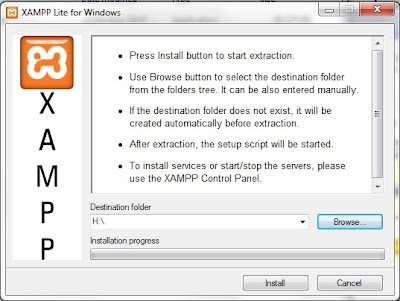
This window will appear. Ensure that your USB drive is plugged into a USB port on your computer. Select the letter assigned to your drive for the Destination folder shown to the left. Click on the Install button and go put your feet up for a bit (it will unpack the files to your drive which should take approximately 20-30 minutes).


Once the unpacking is finished a command prompt window will open and ask a series of questions:

  • Should I add shortcuts to the startmenu/desktop? (y/n)
Choose n (no) here as this is a portable install and you probably won't run it off this computer on a regular basis (otherwise do a normal install of XAMPP or a similar program).
  • Should I locate the XAMPP paths correctly? Should I proceed? (y/x=exit setup):
Choose y (yes) here as this is not really much of a choice (and is necessary for any install of XAMPP).
  • Should I make XAMPP portable without drive letters? Your choice (y/n):
Choose y (yes) here as USB drives can be assigned a different drive letter depending on what is already installed on the host computer. This will allow XAMPP to work regardless of the drive letter on the USB Drive. However, you will have to manually start XAMPP to work with it off the stick (as it will not be a service). This will be covered in the next tutorial.

You should now receive a number of lines indicating that programs are being relocated followed by a message saying that XAMPP is ready to use. Press the enter key to move to the next step.

XAMPP then indicates that it set the time zone for you and where to go to change that later (once again a future tutorial).

At this point you are presented with a menu of options. Choose x to exit the menu. Congratulations you are now the proud owner of a portable web server.

Wednesday, January 26, 2011

An Introduction to Wordle

Note: This is an accompaniment to my article Word Clouds, Collages, and Glogs - Oh My! published in the January 2011 issue of STAO Crucible.

Wordle is a website that will allow you to create word clouds. There is no sign-up necessary (or available at all) and the site is completely free.

Upon arriving at the site you will see some of the latest creations made by users of the site. Click on Create your own (marked by red arrow) to begin your masterpiece.

You will then be prompted to paste in a block of text. Wordle will analyze the word frequencies in the text to produce the word cloud. Words that appear more frequently will appear more prominently in the cloud. Press the Go button after you have entered your text to create your Wordle.

Along the top of your Wordle you will find options that allow you to tweak the design a bit (by adjusting font, colour, word layout). However, you will find that the overall design is produced by the site and is mostly random.

When you are happy with the final product you have a couple options to preserve it for posterity. There is a Print button just underneath the Wordle. If you have the ability to print to PDF (CutePDF is free software that will allow you to do that), you could save it that way. The other option is to use the Print Screen button on your keyboard (normally located in the upper right portion of your keyboard; on some computers needs to be coupled with CTRL or FN to work). You will have a copy of your scree placed on your clipboard. You can then paste it into either a picture editor (like Microsoft Paint) or a word processor (like Microsoft Word) to edit it.

That is about it for the site. It is extremely easy to use and can be a great way to review vocabulary for a unit. One last item to mention would be the advanced options (available from the menu bar at the top of the site). Here you can enter words with a numerical weighting. Words with a larger weighting will appear larger in the Wordle.

Finally, a Wordle I created with the text of this article (a meta-Wordle perhaps?).

Tuesday, August 24, 2010

Don't - Redux


Don't teach me how to use Twitter,
Teach me how to express my ideas succiently.

Don't teach me how to make a Prezi,
Teach me how to speak in public.

Don't teach me blog,
Teach me to have ideas worth expressing.

Don't teach me how to Google,
Teach me how to have good questions.

Don't teach me how to create videos,
Teach me to how to see the beauty in the world.

Don't teach me how to make word art,
Teach me how to appreciate the power of language.

Don't teach me how to use an eReader,
Teach me how to love reading.

Don't teach me how to use social media,
Teach me how to collaborate.

Don't teach me how to consume content,
Teach me how to think critically.

Don't teach me how to use technology,
Teach me how to be human.

Tuesday, May 4, 2010

Tech Tuesday: Create a Google Doc Form

Ok, I've decided to start a Tech Tuesday portion of the blog. One of my professors at Trent told me about her PD she runs at her school on Tuesdays for 1 hour after school educating teachers on the uses of technology. Since I don't have a school, I figured I would start with the blog.

So, today I want to discuss using Google Docs to create a form/quiz/information gather that also has a chart display for the results. This was definitly the show stealer at my recent OAPT presentation. So, here goes.

1. Get a Google Account. Visit Google and click on Sign In in the upper right corner. On the next page choose Create an Account Now. Your new Google Account gives you access to GMail, Google Docs, Google Reader, and Google Calender to name a few.

2. Click on Google Docs in the upper left (may be under More).

3. In Google Docs, click on Create New and select Spreadsheet. A new window will open. Click Form -> Create a Form. Create the form you are interested in (quiz, introduction form, feedback form). For the purposes of these directions, you will need to create questions that have distinct answers (T/F, MC, likert-style).

4. Back in your spreadsheet (which should now have your questions as column headings), click on New Sheet in the bottom left. This new sheet will be used to tally the results from your form. For this example, I am assuming that you created likert-style questions with a 5 point scale (this works best when all the questions have the same style and scale).

5. The values in row 1 should be the questions from your form (or abbreviated versions of them). The questions should start at B1. In the first column (starting in A2) start the scale for your question.


6. Now, we need to add in some formulas to count the responses. For example, in B2 I add a formula that counts all of the responses to the first question that were 1 (this example assumes you renamed the sheet that stores the data from the form as RawData).

=COUNTIF(RawData!B$2:B$103, $A2)

The COUNTIF function will count the data in the range (the first thing in the brackets) only if the value is equal to the second thing in the brackets. The RawData!B$2:B$103 is the range that the function looks over, cells B2 through B103 (this would allow for 102 responses) in the RawData sheet. The $ in front of the number ensures that the numbers do not change when we fill the equation down. The $A2 refers to the 1 placed in that cell, which is the value we want to count.

7. Fill the equation down by clicking the blue square in the corner of the cell highlight box and dragging down. Repeat for the remainder of your questions (by filling across).

8. Now we need to build a chart for our data. Start by selecting all of the data in the new sheet you have just finished making. Select Insert -> Chart to open the chart wizard. Set the Group Data by option to Columns, and ensure that both Use row 1 as labels and Use column A as labels are checked. Click save chart.


9. The chart will appear in the current sheet. Right-click the chart and select Move to own sheet.

10. Now you just need data to be processed into your beautiful chart. Click the Form option in the tool bar and choose Go to live form. This is the page that you can send to the people who you would like to fill out the form. Just copy the web address (the http://spreadsheets.google.com/... bit at the top of your web browser), and send it to your students. They do not need to log in and they do not need a Google Account to fill out the form. In fact anyone who knows the web address can fill out the form.

And that is that, you are now the proud owner of a GoogleDocs hosted spreadsheet creating form that has a nice chart to boot. I have opened the sample form I used for the screen shots, so you can access it through your Google Account. You can access the sample here.

Happy Googling!

Tuesday, March 16, 2010

Reflections at the End of My First Course

Well, I just finished teaching my first in-class course at Conestoga College . In my first semester I only taught Mixed Learning (think structured self study) so I never physically taught in the classroom (only proctored). Overall, I am very pleased with how the course turned out. But, let's start at the beginning.

I was asked to teach the course the Friday before it started (on Tuesday), and only received the textbook and course outline that Monday. The course was on Adobe InDesign which is desktop publishing software. I remember being in a huge rush to get something thrown together (as I had nothing) for the first night.

I was nervous about teaching at the College. For the last year I had been studying and preparing myself to teach in a High School; now I was teaching adults in Continuing Education. I have taught adults before, but never in a course of this length (usually weekend First Aid courses). I was worried that all the pedagogy I had learned wouldn't apply. Turns out I was wrong.

Because the course was not already prepared for me (as they usually are at the College), I decided to work with the students to decide what we would cover in the latter half of the course (after the midterm). This went very well. We also completely reworked the final two assignments combining them into one project. Finally, we converted the final exam into a presentation, where the students could share their projects and their learning with the class. That just happened a few hours ago and it went splendidly. I was nervous about broaching the idea of presentations to the group, and although there were some reservations, everyone was on board. Now, I am glad I chose to bring it up in class.

I used my class wiki from my mixed learning classes last semester. It ended up being used mainly as a static, teacher updated website. A few additions were made by students in the early weeks, but that did not carry forward. I realize now I made two mistakes with it: I should have spent a bit of time each class explaining how to use it as a wiki; and I should have set time in class for students to contribute to it, thus letting them get used to the idea. I was toying with assigning contributions to the wiki (i.e. giving it marks), but I'm on the fence. I don't like to force people to do something they may not want to, but sometimes we need that to begin using something new. I guess I force them to do assignments and tests, so why not using the wiki. Wikis are more fun anyway!

I would like to incorporate more collaborative learning in my next courses. I was nervous to deviate from a directed learning approach as my past experiences with adult education had indicated that approach worked best. However, based on tonight's success, I may have need to reevaluate my past observations.

I have also been pondering the idea of having my students complete real work for real companies (for free of course). I tried to make my assignments as realistic and useful as possible, but in design, nothing beats working for a real client. I've never done this before, so I really don't know where to begin. I also want to work on not talking so much. I'd love to talk only in 5 minute segments and then only for 4-5 of those. I'm just not sure how to do that with teaching application software where so much of the lesson is working through how to use the software.

I already have some ideas for incorporating Twitter and Wordle into my next classes (on the programming language Python and a course on Database Design). I'll post some of those ideas in a future posting. But for now I must be off to bed. I've got a couple of interviews on Thursday so I need my beauty sleep.

Wednesday, March 10, 2010

Why Use Web2.0 in Your Classroom?

So, I know I promised to start looking at actual uses of technology, but I was thinking discussing why we might want to use them might make more sense. Then I started thinking and realized that I probably should talk about why I use web2.0 technologies in my classroom. So here goes ...

As a teacher, I believe that one of my most important duties is to prepare my students to creatively contribute to our society. The society they will build does not yet exist. The memorization of facts that may become obsolete will not help. Instead students need to become learners, they need to be taught how to teach themselves. Eric Hoffer sums up this beautifully with his comment:

"In times of change, learners inherit the earth, while the learned find themselves beautifully equipped to deal with a world that no longer exists."

I was talking with a friend the other day and reminiscing about programming on a Commodore 64. We started wondering what we did back in those days to find information, before Google. We couldn't remember. The Internet has completely changed how we access and store information. The memorization of information is no longer as necessary as it once was. The teaching of information gathering and processing is now vital.

Web2.0 has the power to put the content of the Internet, the information, back into the hands of the users. We live now in an age where Wikipedia is touted as being as accurate as Encyclopedia Britanica, where blogs and tweets are becoming many peoples main source of news.

How do we prepare our students to exist and contribute and build this brave new world? How do we help our students understand the responsibility they have to add to the ever-building content on the net? How do we help them to see what is true and what is hyperbole? The same way we always have, through effective modeling of best practices. I believe that as a teacher I must show my students how to navigate and utilize these new tools, how to mold and direct them, how to learn from them.

This is why I choose to teach web2.0 ...

Sunday, March 7, 2010

More depth on yesterday's post

I feel that I should explore the introduction in yesterday's post a bit more. I want to define my current educational philosophy on technology and teaching. I tend towards Ursula Franklin's views on technology: that it is a set of practices that exists here and now. According to Franklin, "Technology involves organization, procedures, symbols, new words, equations, and, most of all, a mindset."[1] So, in essence technology is anything that we use to solve any problem. I find this definition to be much truer to my sense of technology.

So, that means that on this site we could examine almost anything ... which is exciting. However, I think I will start with some uses of some of the things you find on this blog, such as: twitter, apture, and the blog itself.

Until tomorrow ...


[1] Franklin, Ursula. (1992) The Real World of Technology. (CBC Massey lectures series.) Concord, ON: House of Anansi Press Limited. ISBN 0-88784-531-2